You click once, but your computer registers two clicks. It’s one of the most frustrating mouse problems, especially when you’re trying to drag files, select text, or play games. The good news is that this issue is usually fixable without replacing your mouse immediately.
If you’re searching for how to fix mouse double clicking, this guide walks you through every proven solution. From simple setting adjustments to hardware repairs, you’ll learn exactly what causes the issue and how to stop it for good.
Why Does a Mouse Start Double Clicking?
A mouse may begin double clicking because of software glitches, incorrect settings, outdated drivers, or worn-out hardware components. In many cases, the problem develops gradually over time.
Common causes include:
- Incorrect double-click speed settings
- Dust or dirt inside the mouse switch
- Faulty mouse drivers
- USB connection issues
- Aging mechanical switches
- Low battery levels on wireless mice
- Operating system bugs
Understanding the cause makes troubleshooting much easier.
Test Whether the Mouse Is Actually Double Clicking
Before changing settings or opening the mouse, confirm the issue first.
Try these quick tests:
- Open a folder and click a file once.
- Highlight text in a document.
- Drag and drop icons on the desktop.
- Test the mouse on another computer.
If the problem happens consistently across devices, the mouse itself is likely the issue.
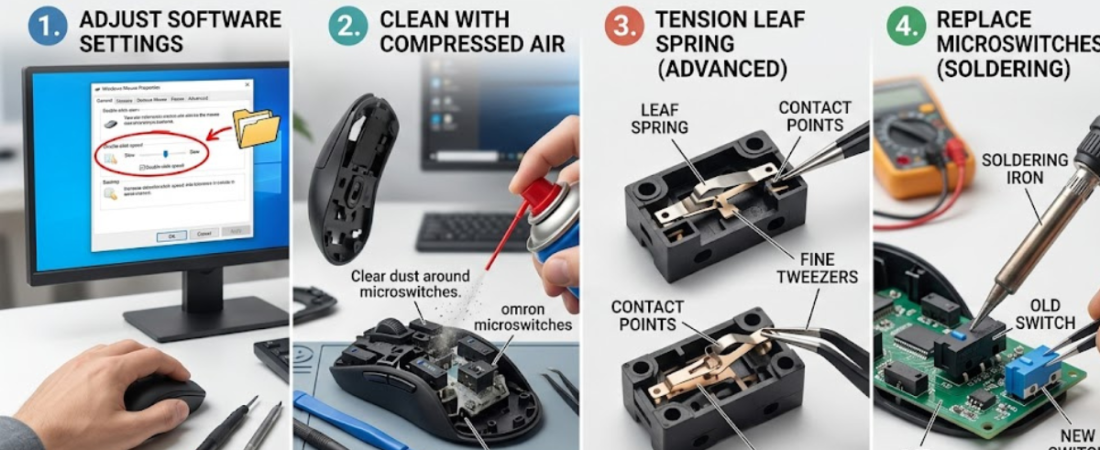
Adjust Double-Click Speed Settings
One of the easiest fixes is changing the click sensitivity in your operating system.
On Windows
- Open the Control Panel.
- Go to “Mouse Settings.”
- Find the “Double-click speed” slider.
- Move the slider slightly toward “Slow.”
- Click “Apply.”
If the setting is too sensitive, your computer may interpret a single click as a double click.
On macOS
- Open System Settings.
- Select “Mouse.”
- Adjust the double-click speed slider.
- Test the mouse afterward.
This simple tweak solves the problem surprisingly often.
Clean the Mouse Thoroughly
Dust and debris can interfere with the internal switch mechanism.
How to Clean a Mouse Properly
- Turn off or unplug the mouse.
- Use compressed air around the buttons.
- Wipe the surface with a microfiber cloth.
- Dip a cotton swab in isopropyl alcohol and clean around the clicks.
Avoid pouring liquid directly into the mouse.
If dirt buildup is causing accidental clicks, cleaning can restore normal behavior immediately.
Update or Reinstall Mouse Drivers
Corrupted drivers may trigger random clicking behavior.
Update Mouse Drivers on Windows
- Right-click the Start button.
- Open Device Manager.
- Expand “Mice and other pointing devices.”
- Right-click your mouse.
- Select “Update driver.”
If updating doesn’t help, uninstall the driver and restart your computer. Windows will automatically reinstall a fresh version.
This is an effective method for anyone trying to learn how to fix mouse double clicking on single click without buying new hardware.
Disable Click Assistance Features
Certain accessibility settings may interfere with normal clicking.
Check for features like:
- ClickLock
- Touchpad tap-to-click
- Auto-click software
- Gaming mouse macros
Disable them temporarily and test the mouse again.
Some gaming software also includes advanced click customization that may accidentally cause repeated inputs.
Change USB Ports or Connection Type
Sometimes the issue isn’t the mouse itself.
Try these steps:
- Plug the mouse into a different USB port
- Remove USB hubs or adapters
- Test with another cable if it’s wired
- Reconnect the Bluetooth pairing if wireless
A weak connection can create erratic behavior that mimics hardware failure.
Replace Batteries in Wireless Mice
Low battery power can cause inconsistent signals.
If you use a wireless mouse:
- Replace old batteries
- Fully recharge the mouse
- Move the receiver closer
- Reduce wireless interference nearby
This often fixes random double-click behavior instantly.
Check for Operating System Updates
Operating system bugs occasionally affect mouse performance.
Update Windows
- Open Settings.
- Go to Windows Update.
- Install available updates.
- Restart your computer.
Update macOS
- Open System Settings.
- Go to General.
- Select Software Update.
Keeping your system updated improves compatibility and stability.
How to Fix Mouse Double Clicking Problem Caused by Hardware Failure
If software fixes don’t work, the internal mouse switch may be worn out.
Mechanical switches wear down after thousands or millions of clicks. When that happens, the switch can accidentally send duplicate signals.
Signs of hardware failure include:
- Random double clicks
- Missed clicks
- Inconsistent dragging
- Clicking feels softer than usual
Temporary Hardware Fix
Some users temporarily fix the issue by:
- Pressing the button firmly several times
- Blowing compressed air into the switch
- Gently tapping the mouse
These are short-term solutions and may not last.
Replace the Mouse Switch
Advanced users can replace the faulty microswitch inside the mouse.
You’ll need:
- A soldering iron
- Replacement microswitches
- Small screwdrivers
- Basic repair knowledge
This repair is common for gaming mice because high-end models are expensive to replace.
If you’re not comfortable opening electronics, replacing the mouse is usually easier.
Use Mouse Manufacturer Software
Some mouse brands offer companion software with advanced settings.
Popular examples include:
- Logitech G Hub
- Razer Synapse
- Corsair iCUE
These tools may let you:
- Adjust debounce timing
- Update firmware
- Customize click response
- Reset profiles
Firmware updates sometimes solve clicking issues entirely.
When You Should Replace the Mouse
Sometimes repair simply isn’t worth the effort.
Consider replacing the mouse if:
- It’s several years old
- The switch repeatedly fails
- Repairs cost more than replacement
- Multiple buttons stop working
Modern mice are generally affordable, and a new model may improve comfort and productivity.
Tips to Prevent Future Double Clicking Issues
A little maintenance can extend your mouse lifespan significantly.
Best Practices
- Keep the mouse clean
- Avoid aggressive clicking
- Store it away from moisture
- Use a mouse pad
- Update drivers regularly
Quality mice also tend to last much longer than budget models.
FAQ
Why is my mouse double clicking when I single click?
This usually happens because of worn-out switches, overly sensitive click settings, or driver issues. Adjusting the double-click speed is often the first fix to try.
How do I know if my mouse switch is broken?
If the mouse randomly double clicks, misses clicks, or struggles during drag-and-drop actions, the switch may be failing.
Can software cause mouse double clicking?
Yes. Corrupted drivers, accessibility features, outdated firmware, or gaming software settings can all trigger clicking problems.
How to fix mouse double clicking issue without opening the mouse?
Start with:
- Cleaning the mouse
- Updating drivers
- Changing double-click speed
- Replacing batteries
- Trying another USB port
These methods solve many cases without hardware repair.
Is double clicking a sign I need a new mouse?
Not always. Many issues are software-related and easy to fix. However, older mice with worn mechanical switches may eventually need replacement.
Conclusion
Learning how to fix mouse double clicking can save you time, frustration, and money. In many cases, the solution is as simple as adjusting settings, updating drivers, or cleaning the mouse properly. If the issue comes from worn hardware, replacing the switch or upgrading to a new mouse may be the best long-term fix.
Start with the easy troubleshooting steps first, then move toward hardware solutions only if necessary. With the right approach, you can usually get your mouse working normally again without much hassle.