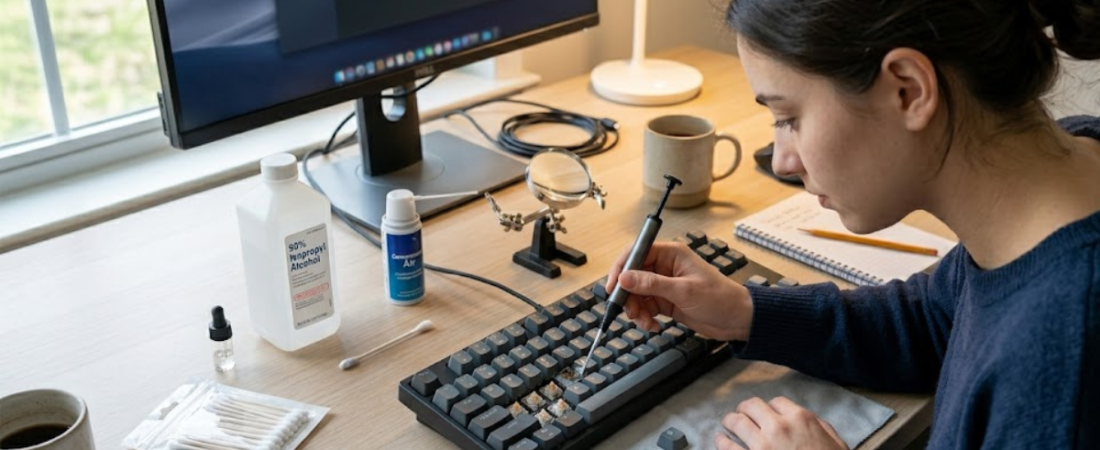
Few computer problems are as annoying as sticky keyboard keys. Whether a key feels slow, gets stuck halfway down, or types multiple letters at once, it can make even simple tasks frustrating. Dust, crumbs, spills, and everyday wear are usually the main causes, but the good news is that many sticky keyboard problems can be fixed at home without expensive repairs.
If you’re searching for how to fix sticky keyboard keys, this guide walks you through practical troubleshooting methods for laptops, desktop keyboards, and even MacBooks. From quick cleaning tricks to deeper repair solutions, you’ll learn how to restore smooth and responsive typing.
Why Keyboard Keys Become Sticky
Keyboard keys rely on small mechanical or membrane components to move properly. Over time, dirt and debris can interfere with these mechanisms.
Common causes include:
- Food crumbs
- Dust buildup
- Liquid spills
- Oil from fingers
- Worn-out key switches
- Humidity and moisture
- Damaged keyboard components
Sometimes the issue is purely physical, while other cases may involve software settings that affect typing behavior.
Start With a Simple Keyboard Restart
Before taking the keyboard apart, restart the computer. Temporary software glitches can occasionally cause repeated keystrokes or delayed input.
For external keyboards:
- Disconnect the keyboard
- Restart the computer
- Reconnect the keyboard
For wireless keyboards, replace or recharge the batteries before testing again.
Turn Off Sticky Keys Accessibility Settings
Many people confuse physical sticky keys with the Windows accessibility feature called “Sticky Keys.”
To check:
On Windows
- Open Settings
- Go to Accessibility
- Select Keyboard
- Turn Sticky Keys off
On Mac
- Open System Settings
- Go to Accessibility
- Select Keyboard
- Disable Sticky Keys
If the problem disappears afterward, the issue was software-related rather than mechanical.
How to Fix Sticky Keyboard Keys With Basic Cleaning
Cleaning is often the fastest and safest solution.
Use Compressed Air
Compressed air removes dust and crumbs trapped under the keys.
Steps:
- Turn off the device
- Hold the keyboard at an angle
- Spray short bursts between keys
- Rotate the keyboard while cleaning
Avoid holding the can too close to prevent moisture buildup.
Wipe the Surface Carefully
Use a microfiber cloth slightly dampened with isopropyl alcohol.
Focus on:
- Sticky areas
- Frequently used keys
- Edges around keycaps
Never pour liquid directly onto the keyboard.
Remove and Clean Individual Keys
If one or two keys remain sticky, deeper cleaning may help.
For Desktop Keyboards
Most desktop keycaps can be removed gently with a keycap puller or plastic tool.
After removal:
- Clean underneath the key
- Remove debris
- Dry thoroughly
- Reattach carefully
For Laptop Keyboards
Laptop keys are more delicate, so extra caution is necessary.
Avoid forcing keys off unless you understand the keyboard mechanism.
How to Fix Sticky Keyboard Keys on Laptop
Laptop keyboards are thinner and more compact, which makes them more vulnerable to dust and spills.
Here are the safest methods:
Tilt the Laptop Upside Down
Turn the laptop upside down and gently shake loose debris out.
Use Soft Brushes
Small anti-static brushes can remove particles without damaging components.
Clean Around the Edges
Use cotton swabs with minimal alcohol around sticky keys.
Avoid Excess Moisture
Too much liquid can damage the internal circuitry beneath the keyboard.
If multiple keys stop responding, the issue may require professional repair.
How to Fix Sticky Keyboard Keys on a MacBook
MacBook keyboards, especially older butterfly-style models, are known for dust sensitivity.
Use Apple’s Recommended Cleaning Method
Apple suggests:
- Holding the MacBook at a 75-degree angle
- Spraying compressed air in a left-to-right motion
- Rotating the device and repeating
This helps clear trapped debris beneath low-profile keys.
Be Careful With Butterfly Keyboards
Older MacBooks have fragile key mechanisms that can break if removed improperly.
If cleaning does not work, professional servicing is usually safer.
What to Do After Liquid Spills
Liquid damage is one of the most serious causes of sticky keys.
If a spill occurs:
- Turn off the device immediately
- Disconnect power
- Remove external accessories
- Blot liquid gently
- Let the keyboard dry completely
Avoid using a hair dryer because heat can damage internal parts.
Sugary drinks like soda or coffee often leave sticky residue that requires detailed cleaning.
Signs Your Keyboard Needs Replacement
Sometimes cleaning won’t solve the problem.
You may need a replacement if:
- Keys stop responding entirely
- Multiple keys fail together
- Typing becomes inconsistent
- The keyboard has severe liquid damage
- Keys feel loose or broken
External keyboards are usually inexpensive to replace, while laptop keyboard repairs may require professional service.
Tips to Prevent Sticky Keys
A few simple habits can keep keyboards working smoothly for years.
Avoid Eating Over the Keyboard
Food crumbs are one of the biggest causes of sticky keys.
Wash Your Hands Before Typing
Oil and dirt transfer easily to keyboard surfaces.
Clean the Keyboard Regularly
Weekly cleaning prevents buildup before it becomes serious.
Use Keyboard Covers Carefully
Covers help block dust but can trap moisture if not cleaned properly.
Keep Drinks Away
Even small spills can cause major damage.
Common Keyboard Cleaning Mistakes
Many people accidentally make the problem worse during cleaning.
Avoid these mistakes:
- Using excessive liquid
- Pulling laptop keys too hard
- Spraying cleaners directly onto the keyboard
- Using sharp metal tools
- Cleaning while the device is powered on
Gentle cleaning is always safer than aggressive scrubbing.
Frequently Asked Questions
Why are my keyboard keys sticking?
Sticky keys are usually caused by dust, debris, spilled liquids, or worn mechanical parts.
Can I fix sticky keys without removing them?
Yes. Compressed air and surface cleaning often solve minor issues.
Is isopropyl alcohol safe for keyboards?
Yes, when used in small amounts on a microfiber cloth or cotton swab.
Why does my laptop keyboard feel sticky after a spill?
Sugary residue from drinks can remain under the keys even after the liquid dries.
Should I remove MacBook keys for cleaning?
Generally, no. MacBook keys are delicate and can break easily if removed incorrectly.
When should I replace my keyboard?
If cleaning fails and multiple keys remain unresponsive, replacement may be the best option.
Conclusion
Learning how to fix sticky keyboard keys can save you time, frustration, and repair costs. In many cases, simple cleaning methods like compressed air, microfiber cloths, and careful debris removal are enough to restore normal typing performance.
For laptops and MacBooks, gentle handling is especially important because the keyboards are more delicate than desktop models. Regular maintenance, clean habits, and quick action after spills can prevent most sticky key problems before they become serious. With proper care, your keyboard can remain smooth, responsive, and comfortable to use for years.